1. About ERP Scheduling System
ERP Scheduling System is built for STEM education centers that offer
in-depth study of specific subjects (physics and/or chemistry) to students from multiple schools. Centers
like this face a specific scheduling challenge — class days and times need to be coordinated across every
partner school contributing students to a group.
The application makes it easier for different staff roles — administrators, teachers, lab assistants —
to manage dozens of operational workflows: from partner-school coordination to assigning labs and
classrooms based on equipment ordered by teachers. It gives center management the ability to manage
teacher workload (total working hours, teaching hours, group sizes) and make a variety of operational
decisions. The system also collects, processes, and analyzes all statistical data related to the
center's operations.
For centers like this, the schedule is never static. It changes daily — reschedules, substitutions,
cancellations.
The core job of Scheduling System is to make managing the
center's schedule and resources transparent, intuitive, and easy to work with.
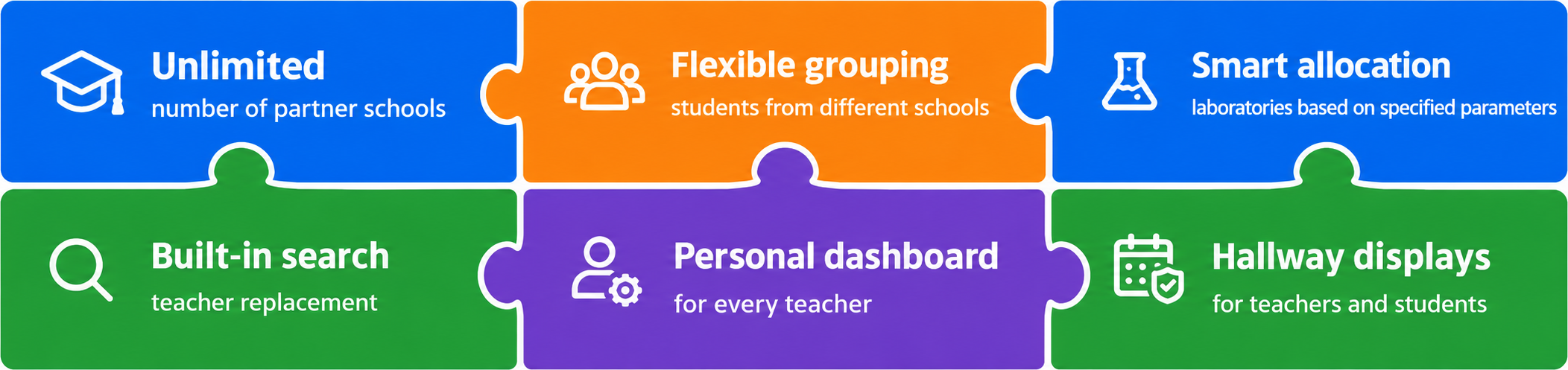
Key Capabilities
Technical Guarantees
Immutable
data
Atomic
transactions
Granular
access rights
Access token
with auto-logout
Conflict protection
at the database level
Zero Trust
Cloudflare Tunnel
2. Who Uses the System
The system has eight roles. A staff member can be assigned more than one role at a time.
| Role |
Who They Are |
What They Do |
| Super Admin |
Technical lead |
Full access. Manages reference data, staff, and global settings. |
| Admin |
Any staff member with admin rights — including as a secondary role |
Reviews incoming schedule-change requests, clarifies details, and approves them. The only role
that actually applies changes to the data — approve or reject. |
| Teacher |
Instructor |
Initiates schedule changes: reschedules, cancellations, substitutions, equipment orders.
Everything goes through a request to the admin — teachers never edit data directly. |
| Lab Assistant |
Lab staff member |
Sees the list of upcoming lessons with ordered equipment. Prepares and delivers kits. Never
creates or edits orders — only fulfills them. |
| Principal |
Center principal |
Full read access to the schedule and reports for any period. Manages teacher workload and
assigns substitutes. Can also teach lessons (if also assigned as a teacher). |
| Vice Principal |
Deputy principal for academics |
Read access to the schedule and reports for teachers in their subject. Manages teacher workload
and assigns substitutes. Can also teach lessons (if also assigned as a teacher).
|
| Secretary |
Secretary / office administrator |
Read-only: full schedule, all reports, any period. Cannot make changes. |
| Center Coordinator |
Center staff member |
Handles school communication on behalf of the center. Supports partner schools, coordinates
logistics.
|
Access rights are configured granularly — not just per role as a whole, but per
individual action on specific screens (for example, "open a day for editing" or "assign a substitute
teacher" can be granted to the principal and vice principal separately from full admin access). This
allows precise, low-risk expansion of permissions.
3. Core Processes
3.1 Annual Template & Propagation
The schedule has two levels. The upper level is the annual weekly template: each teacher's and group's
standard workload. The lower level is the actual week-by-week schedule for the whole academic year,
generated from that template.
1Admin edits the template —
reassigns the teacher, time, or day of a template slot.
2The system propagates the
change — within seconds, updates only the weeks and slots affected: changed ones are
updated, new ones are added, cancelled ones are removed. The whole schedule is never rebuilt from
scratch.
3Existing work isn't lost —
anything already accumulated around lessons the propagation didn't touch — equipment orders, comments,
teacher requests — stays exactly as it was.
A lesson's room isn't picked arbitrarily — it's matched to actual need: fume hood, sink, blackout
capability, or equipment already ordered.
A lesson removed by a one-off cancellation stays in the schedule struck through — teachers and students
can see that there's no lesson that day. But a lesson removed by a change to the template itself (a slot
change, a shortened academic year) moves to a separate archived status: it disappears
entirely from every schedule view, so teachers don't scroll past dozens of "ghost" cancelled lessons for
the rest of the year — yet it physically stays in the table, since foreign keys from request and audit
history don't allow deleting it.
3.2 Schedule Changes
The schedule is built for the academic year, but day-to-day adjustments come up constantly. The system
routes them through a clear path:
1Teacher submits a request —
specifies exactly what needs to change: reschedule a lesson, cancel it, adjust an equipment order, or
change the room. Principals and vice principals, when they also teach, use the same system as regular
teachers.
2The system checks for
conflicts — at submission time, shows whether the room or teacher is already booked for
that slot. The teacher sees a warning and can adjust the request or submit it anyway with the conflict
flagged — the admin then resolves it manually.
3Admin reviews the request —
sees the queue of incoming requests, adjusts details with the teacher if needed, and approves the
change.
4The schedule updates — after
every approved change, the schedule updates immediately and everyone sees the current state right
away.
5The lesson is completed — the
system marks it complete automatically once the lesson's end time passes.
The full change history is kept automatically — the admin can always see what the schedule looked like
before a change and who made it.
A lesson's room can be changed three ways: assign directly, displace it from an occupied room (the
system finds the displaced lesson a new room on its own, and leaves it roomless rather than blocking the
action if none is free), or swap rooms between two lessons. The "room changed" email isn't sent on every
move inside an editing session — only once, when the day is closed, and only to people whose room
actually ended up different.
3.3 Equipment Preparation
1Teacher adds equipment to a lesson
request — when submitting a request for a new or modified lesson, selects the needed
experiment from the catalog and the number of kits: for a demo or for hands-on student work. The whole
request — lesson and equipment — goes to the admin together.
2Admin approves the request —
reviews the lesson and equipment together and makes one decision. Once approved, the equipment order is
automatically linked to the lesson.
3Lab assistant sees a daily
summary — their interface shows upcoming orders: what to prepare, how many kits, for which
class, and which room.
4Lab assistant assembles and delivers
the equipment — puts together kits for each lesson based on the system's data.
5The order closes automatically after
the lesson — the system marks it complete once the lesson ends.
Physical inventory tracking and automatic component reservation are planned as a separate module for a
later stage.
3.4 Substitute Teachers
If a teacher can't take a lesson, the admin, principal, or vice principal picks a substitute from the
list of teachers available at that time with a matching subject profile. The lesson immediately shows
as a substitution everywhere — in the schedule and on the corridor displays.
The candidate list is generated automatically — the system only shows teachers who, at the same time,
are: working at the center on that day and hour (based on the teacher's work schedule), qualified to
teach the subject at that grade level, and not already booked for another lesson.
If no suitable substitute is available, the lesson is flagged with a special system placeholder
("pending cancellation"), and a cancellation request for the lesson is created automatically for the
admin. If a real substitute is found later, that request withdraws itself — no admin action needed.
3.5 Populating the System (Data Workflow)
Data is entered in a strict order — each step depends on the one before it.
- 11 tables — initial system bootstrap
- 2 tables — experiment catalogs (physics and chemistry)
- 2 tables — requests and threaded comments
- 4 tables — day-editing locks and snapshots
- 2 tables — history and logs
- 1 table — access permissions
- 4 tables — email queue, rules, sender addresses, delivery status
- 1 table — system settings
- 2 tables — academic calendar
- 2 tables — staff detail
All table IDs are fixed and never change on reinstall or restore from backup. This guarantees that
every reference between tables stays valid at every stage.
4. What the System Is Made Of
The system is built from several independent components, each responsible for its own part:
| Component |
What It Does |
| Database |
Stores all data and enforces every rule: validation, locking, change history |
| API server |
Accepts requests, checks who's allowed to do what, and passes commands to the database |
| Web interface |
Scheduling System, fully in Hebrew (RTL) |
| Corridor displays |
Dedicated screens for the center's hallways — the day's live schedule for teachers, and a
simplified version for students, with no personal login (authenticated via a static device key) |
| Notifications |
An event-driven pipeline: every action (request submitted/approved/rejected, equipment
order, substitution, server maintenance) writes an event to a queue inside the same
transaction, so a failed write never blocks the action itself. A background sender resolves
recipients by role, subject, and event participant from a rules table, renders an email, and
delivers it via a transactional email provider — with automatic retries and an admin kill
switch. Messenger channels (Telegram, WhatsApp) remain a possible future extension. |
| Infrastructure |
Deployed in Docker containers on an AWS server, with automatic daily database backups |
5. Reliability & Security
- Every user gets an access token after logging in. The token is valid for 2 hours
(auto-logout after 30 minutes of inactivity) and carries their role. No valid token, no access — no
exceptions.
- Every rule is enforced at the database level — there's no way to bypass them through the
interface.
- The backend connects to the database under a separate, restricted role with no direct
INSERT/DELETE rights on lesson, log, or editing-session tables — any schedule
change can only go through stored functions running with elevated rights
(SECURITY DEFINER).
- The change history can't be altered or deleted — by any user, in any role. This guarantees full
transparency for every action in the system.
- The system automatically blocks scheduling conflicts.
- Internet access is architected on a Zero Trust basis — via
Cloudflare Tunnel.
- 391 automated regression checks (API + database layers) run before every deploy —
verifying request approval workflows, teacher substitutions, day freeze/rollback mechanics,
scheduling-conflict prevention (EXCLUDE USING GIST), equipment orders, and the
notification-rules matrix.